While malware on iOS is rare compared to other platforms, it can still happen through phishing links, malicious profiles, and compromised apps. Knowing how to detect malware on your iPhone can help you protect your personal data, privacy, and device performance. This guide explains how to check your iPhone for malware, warning signs to watch for, and what to do if you suspect an infection.
Can Malware Be Installed on an iPhone?
Apple’s closed ecosystem, strict App Store policies, and built-in security features make it difficult for malware to infect iPhones. However, malware can still find its way onto a device in certain situations.
For example, jailbroken iPhones are more vulnerable because they bypass Apple’s security restrictions. Malware can also enter through malicious websites, phishing attacks, fake apps, and configuration profiles installed outside the App Store. While the risk is low, it’s not zero.
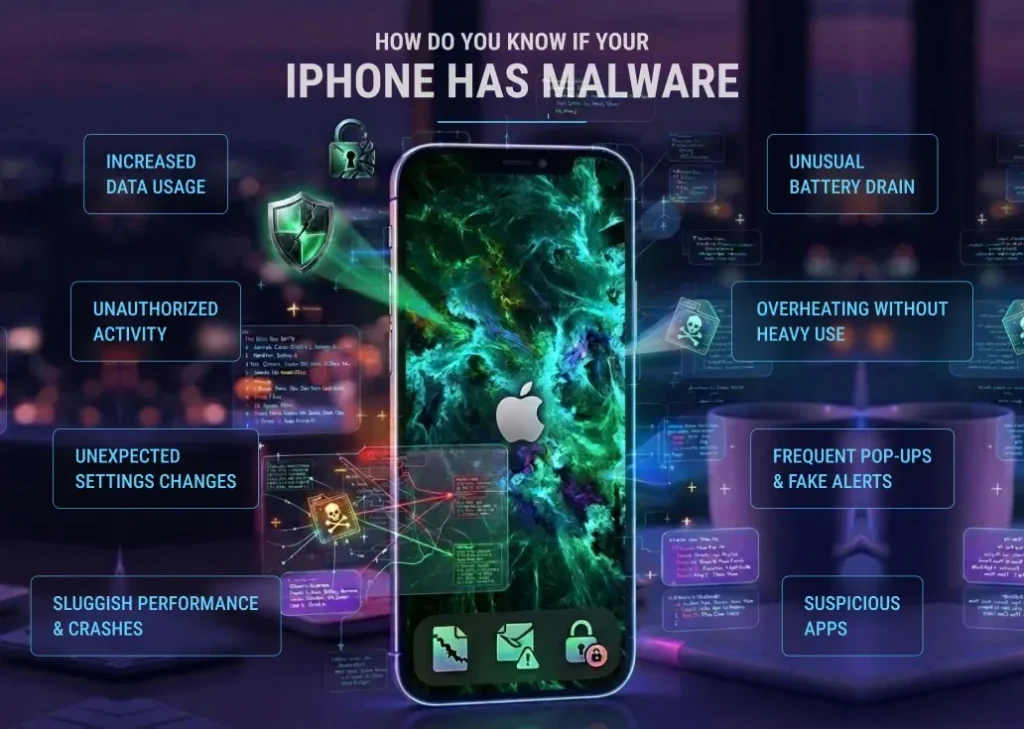
How Do You Know If Your iPhone Has Malware?
Recognizing these warning signs early can help you take action before any serious damage occurs.
Unusual Battery Drain
One of the most common signs of potential malware on an iPhone is sudden and unexplained battery drain. If your device starts losing charge much faster than usual when you’re not using power-intensive apps, it could indicate that something is running in the background without your knowledge. Malware often consumes power continuously, which leads to noticeable drops in battery performance.
Overheating Without Heavy Use
iPhones can get warm during gaming or streaming, but if your device frequently overheats during normal use or while idle, it may be a red flag. Malicious processes running silently in the background can put extra strain on your device’s processor, causing it to heat up more than expected.
Frequent Pop-Ups and Fake Alerts
If you see repeated pop-ups, especially in your browser, claiming your iPhone is infected and urging you to download an app, it’s usually a sign of malicious websites or scams, not an actual system warning. These fake alerts are designed to trick you into installing harmful software or sharing personal information.
Suspicious Apps
Finding apps on your iPhone that you don’t remember installing can be a warning sign, particularly if your device has been jailbroken or if you’ve installed apps from unofficial sources. These apps may run hidden processes and collect data without your consent.
Increased Data Usage
A sudden spike in mobile data usage can indicate that malware is sending and receiving information in the background. If your data consumption seems unusually high without a clear reason, it’s worth checking which apps are using the most data in your settings.
Sluggish Performance and Crashes
If your iPhone becomes slow, unresponsive, and crashes frequently, it could be due to unwanted software interfering with its normal operations. Malware can consume system resources, leading to lagging apps and reduced overall performance.
Unauthorized Activity
If your contacts report receiving unusual messages from your number and you notice unfamiliar activity on your accounts, it could indicate that your device has been compromised. Some types of malware spread by sending phishing links and by accessing personal information.
Unexpected Settings Changes
Changes to your iPhone settings, such as unknown configuration profiles, altered security settings, or unfamiliar VPN connections, can be a sign of malicious interference. These changes may allow attackers to monitor your activity and redirect your internet traffic.
How to Check an iPhone for Malware?
By following these steps, you can effectively check your iPhone for malware and take action if something seems off.
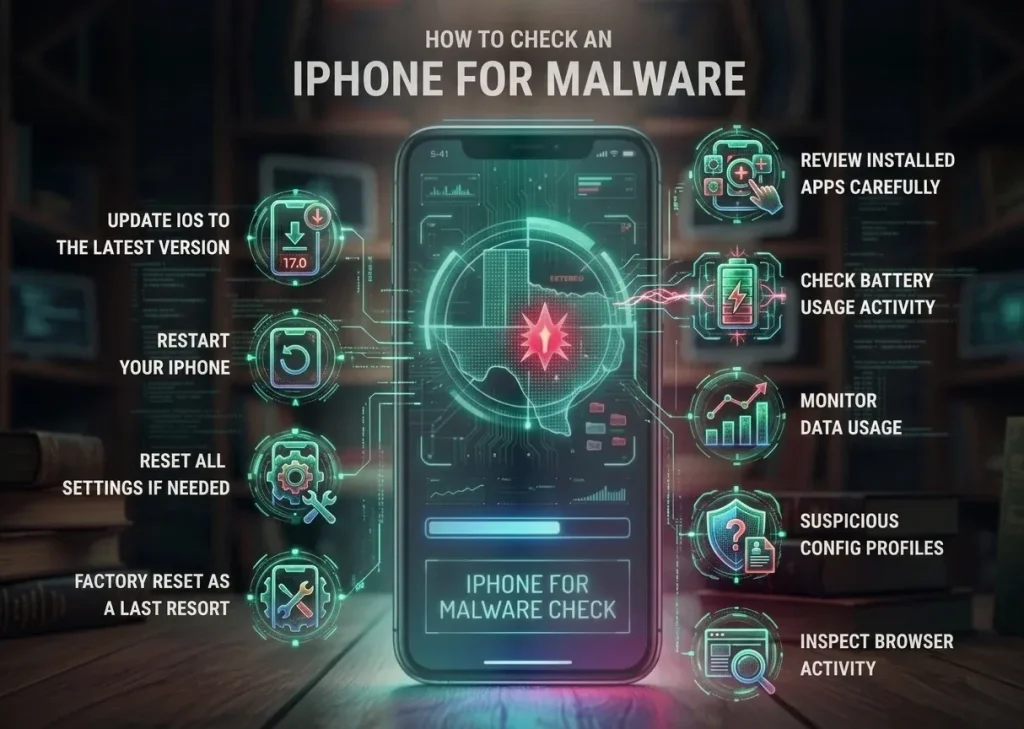
Review Installed Apps Carefully
Start by going through all the apps on your iPhone and checking for anything unfamiliar and suspicious. If you notice an app you don’t remember installing or one that looks out of place, it’s best to delete it immediately. Even though iPhones are secure, unwanted apps can sometimes slip in through indirect methods like phishing and shared access.
Check Battery Usage for Unusual Activity
Open Settings > Battery and review which apps are consuming the most power. If you see an app using excessive battery in the background without a clear reason, it could be a sign of hidden and unwanted activity. This is one of the easiest ways to spot abnormal behavior.
Monitor Data Usage
Go to Settings > Cellular and check which apps are using the most data. Malware and suspicious apps often rely on internet access to send or receive information, so unusually high data usage can be a warning sign that something isn’t right.
Look for Suspicious Configuration Profiles
Navigate to Settings > General > VPN & Device Management, then check whether any configuration profiles are installed. If you find a profile you don’t recognize, remove it immediately. Malicious profiles can control device settings, track activity, and redirect your internet traffic.
Inspect Safari and Browser Activity
Check your browser for unusual behavior, such as frequent redirects, pop-ups, or an unfamiliar homepage. Clearing your browsing history and website data can help remove harmful scripts and trackers that may be affecting your device.
Update iOS to the Latest Version.
Keeping your iPhone updated is essential for security. Go to Settings > General > Software Update and install any available updates. Apple regularly releases patches to fix vulnerabilities that attackers could exploit.
Restart Your iPhone
Sometimes, restarting your device can stop temporary malicious processes. While this won’t remove serious threats, it can help identify whether unusual behavior persists after a reboot.
Reset All Settings if Needed
If you continue to notice suspicious activity, consider resetting your settings by going to Settings > General > Transfer or Reset iPhone > Reset > Reset All Settings. This won’t delete your data but will remove custom configurations that may be causing issues.
Perform a Factory Reset as a Last Resort
If problems persist and you strongly suspect malware, a factory reset is the most effective solution. This will erase all data and restore your iPhone to its original state. Be sure to back up important files and avoid restoring from a potentially infected backup.
How to Find Malware on iPhone?
Finding malware on an iPhone isn’t about scanning files; it’s about recognizing warning signs and unusual activity.
Understand iPhone Limitations First.
Unlike computers, iPhones don’t allow full system access to third-party apps, which means you can’t run traditional antivirus scans to directly “find” malware. Instead, detection relies on identifying unusual behavior, unauthorized changes, and suspicious activity on your device.
Look for Unusual Device Behavior
Start by observing how your iPhone is performing. If you notice sudden lag, frequent app crashes, random restarts, and apps behaving oddly, it may indicate something running in the background. Malware often disrupts normal system performance if it stays hidden.
Check for Unknown Apps
Go through your home screen and app library to spot any apps you don’t recognize. Check if any app icons, settings, and permissions have changed without your knowledge. Unauthorized additions or modifications can be a sign of compromise.
Inspect Configuration Profiles and VPNs
Navigate to Settings > General > VPN & Device Management and review any installed profiles and VPN configurations. If you see anything unfamiliar, remove it immediately. Malicious profiles can take control of your device, monitor your activity, and redirect your internet traffic.
Monitor Battery and Data Usage
Check Settings > Battery and Settings > Cellular to identify apps that are consuming excessive power and data. Malware often runs in the background, leading to unusual usage spikes even when you’re not actively using your phone.
Watch for Suspicious Pop-Ups
If your browser frequently shows pop-ups claiming your iPhone is infected and redirects you to unfamiliar websites, it’s likely a sign of malicious scripts or scam pages. While this may not always be true malware, it still indicates a security issue that needs attention.
Review App Permissions
Check which apps have access to sensitive features like your camera, microphone, location, and contacts. If an app has permissions that don’t align with its purpose, it may be suspicious and should be removed.
Check for Jailbreak Indicators
If your iPhone is jailbroken, it becomes more vulnerable to malware. Jailbreaking removes Apple’s built-in protections, making it easier for malicious software to operate undetected.
Test by Restarting Your Device
Restart your iPhone and see if the unusual behavior persists. Temporary glitches often resolve after a reboot, but persistent issues may indicate a more serious issue.
Use a Factory Reset if Necessary
If you strongly suspect malware and cannot identify the source, performing a factory reset is the most reliable way to eliminate it. This removes all apps, settings, and potential threats, restoring your device to a clean state.
Conclusion
While malware on iPhones is uncommon, it’s still important to stay vigilant. Recognizing warning signs like unusual battery drain, unknown apps, and excessive data usage can help you detect potential threats early. Regularly updating your device, avoiding suspicious links, and reviewing installed apps are simple yet effective ways to keep your iPhone secure. If you ever suspect malware, acting quickly, whether by removing suspicious content and performing a reset, can protect your data and restore your device’s performance.
FAQs
Here are some of the frequently asked questions.
How Does Malware Get Installed on an iPhone?
Malware typically reaches iPhones through:
Phishing links in emails
Malicious websites prompting downloads
Sideloaded apps
Jailbreaking the device
Installing untrusted configuration profiles
Are iPhones Protected Against Malware by Default?
Yes, iPhones come with strong built-in security features, including sandboxing, app review processes, and system-level protections. These measures make it difficult for malware to spread and access sensitive data. However, user actions like clicking suspicious links and installing unknown profiles can still create vulnerabilities.
Can Apps from the App Store Contain Malware?
It’s rare, but not impossible. Apple reviews all apps before they’re published, which significantly reduces risk. However, some malicious apps have occasionally slipped through by disguising harmful behavior.
That’s why it’s important to:
Check app reviews
Verify developer credibility
Avoid apps with suspicious permissions
Does Resetting an iPhone Remove Malware?
Yes, performing a factory reset is one of the most reliable ways to remove malware. It erases all data and restores the device to its original state.
Before resetting:
Back up important data
Avoid restoring from a suspicious backup
Reinstall apps manually instead of restoring everything automatically
Table of Contents