That makes it an attractive target for infostealer malware, a type of malicious software designed to collect valuable information from an infected device. The risk is not limited to losing a saved password. An infostealer may also capture browser cookies, allowing attackers to access an account without entering the password again. Verizon’s 2025 research found that compromised systems infected with infostealers had, in the median case, only 49% of saved passwords unique across services, showing how a single stolen credential can affect multiple accounts. Mandiant also reported that credentials stolen through infostealer operations represented 16% of its investigations as an initial infection vector in its 2025 analysis.
What Is Infostealer Malware?
Infostealer malware is malicious software designed to quietly collect information from an infected computer or mobile device and send that information to an attacker. Unlike malware that immediately encrypts files or displays a ransom demand, an infostealer may operate quietly in the background.
A browser-focused infostealer typically looks for information stored by browsers and other applications. Depending on the malware and the device, this can include saved usernames and passwords, browser cookies, autofill information, cryptocurrency wallet data, browsing-related information, and other sensitive data.
The stolen information can then be sold, reused for account takeover, or combined with other information to carry out additional attacks.
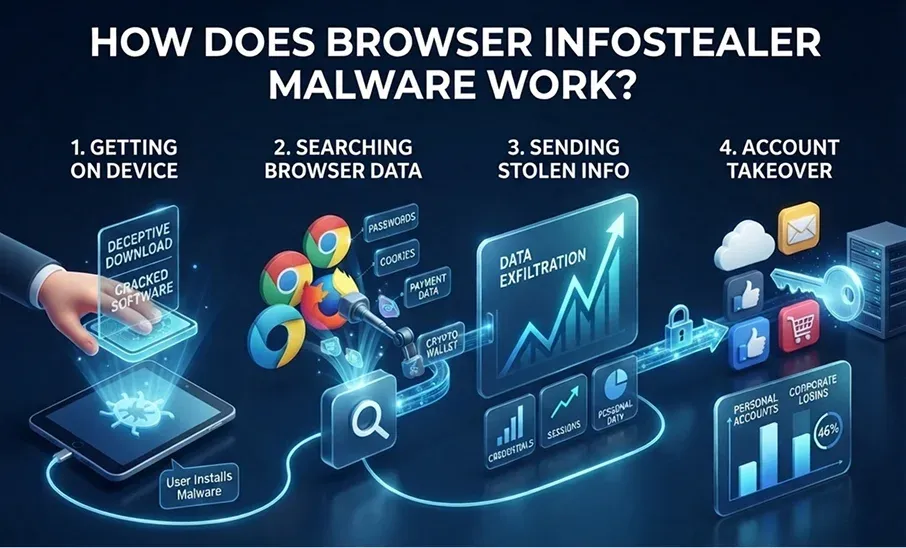
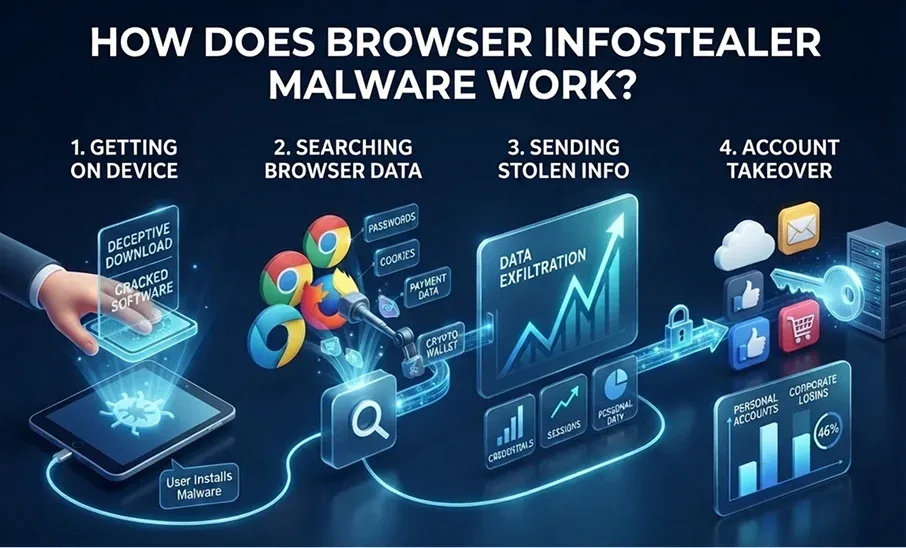
How Does Browser Infostealer Malware Work?
1. The Malware Gets Onto Your Device
Infostealers commonly rely on users installing or opening something malicious. This could be a fake software update, a pirated application, a malicious browser extension, a deceptive download, cracked software, or an attachment.
A user may believe they are installing a legitimate application while the malicious program runs in the background.
2. It Searches for Valuable Browser Data
Once installed, the malware can look for data stored by supported browsers and applications. Depending on the specific infostealer, attackers may target saved credentials, cookies, autofill information, payment-related data, browser history, cryptocurrency wallets, and other locally stored information.
This is why simply having a strong password does not provide complete protection if the device itself becomes compromised.
3. Stolen Information Is Sent to Attackers
The malware can package the information it finds and transmit it to infrastructure controlled by the attacker. Criminals may then use the information themselves, sell it, or combine it with data obtained from other breaches.
Verizon’s 2025 DBIR analysis found that compromised credentials were used as an initial access vector in 22% of breaches reviewed.
4. Attackers Can Attempt Account Takeover
If attackers obtain valid credentials or an active session cookie, they may attempt to access email, social media, shopping accounts, cloud services, business platforms, or other online accounts.
For businesses, the consequences can extend beyond a single person’s account. Verizon found that 46% of compromised systems with corporate logins in its infostealer analysis were non-managed devices hosting both personal and business credentials.
What Can Infostealer Malware Steal From Your Browser?
Browser security is no longer simply about protecting passwords. Modern browsers can contain a considerable amount of sensitive information.
Saved Passwords
Many people use their browser’s built-in password manager to save credentials. This is convenient, but if an infostealer successfully accesses browser data, stored credentials can become a target.
Password reuse makes the consequences more serious. If the same password is used for email, shopping, social media, and work accounts, a single compromised credential can expose multiple services.
Using unique passwords for every important account limits the damage from a single stolen password.
Browser Cookies
Cookies can remember preferences, maintain authentication, and keep users signed into websites.
Some authentication cookies can be particularly valuable to attackers. If a malicious program steals a valid authentication cookie, an attacker may attempt to use that session information to access the associated account.
The Cyber Safety Review Board has specifically highlighted the widespread theft and monetization of authentication cookies through infostealer malware as a security concern.
Active Login Sessions
An active session can sometimes allow access without requiring the attacker to know the user’s password. This distinguishes credential theft from browser session hijacking. Changing a password can address a stolen password, but if an attacker has already obtained an active session token, additional steps may be necessary to invalidate that session.
Autofill Information
Browsers can save names, addresses, phone numbers, email addresses, and other information for automatic form completion. Depending on the malware and browser configuration, this information may become part of the data an infostealer targets.
Payment Information
Some users allow browsers or associated services to save payment information for faster checkout. Even when full card details are not directly accessible, exposed personal information can help attackers craft convincing phishing attempts or target victims through account takeovers and fraud.
Cryptocurrency Wallet Information
Certain infostealers specifically search for cryptocurrency-related applications, browser extensions, wallet data, and credentials. Anyone who manages digital assets through a browser should therefore treat browser security as part of their overall financial security strategy.
How to Protect Your Browser From Infostealer Malware?
Preventing an infection is easier than dealing with stolen credentials and active sessions afterward. The following steps can significantly reduce your exposure.
1. Keep Your Browser Updated
Install browser updates promptly rather than repeatedly postponing them. Updates can include security fixes for vulnerabilities that attackers could otherwise exploit. This applies whether you use Chrome, Edge, Firefox, Safari, or another mainstream browser. Enable automatic updates when your browser and operating system support them.
2. Keep Your Operating System Updated
Browser security cannot be separated from device security. An outdated Windows, macOS, Linux distribution, Android device, or iPhone can expose you to vulnerabilities that attackers may exploit before they ever reach your browser. Turn on automatic security updates where practical and restart your device when important updates require it.
3. Avoid Pirated and Cracked Software
Unofficial software is one of the major risks consumers should avoid. A download advertised as a “cracked” application, activation tool, game modification, or premium software unlocker may contain malware. The software might appear to work normally while malicious processes operate in the background. Download applications from official websites and reputable app stores whenever possible.
4. Be Careful With Browser Extensions
Browser extensions can access significant information depending on their permissions.
Before installing an extension, check:
- Who developed it
- What permissions does it request
- Whether it is still maintained
- Whether it comes from an official extension store
- Whether you actually need the requested permissions
Remove extensions you no longer use. A smaller extension footprint reduces the number of third-party components interacting with your browser.
5. Don’t Trust Random “Browser Updates”
Fake update messages are a common social-engineering technique. You might encounter a website claiming that your browser, video player, PDF reader, or security software needs an urgent update. Instead of clicking the provided button, open the browser’s official settings and check for updates there.
The same principle applies to software downloads: navigate to the legitimate website yourself rather than following an unexpected download link.
6. Use a Password Manager With Unique Passwords
A dedicated password manager can help you create and maintain unique passwords for different accounts. The key benefit is not simply storing passwords. It is avoiding password reuse.
If one website suffers a breach, a unique password prevents that exposed password from automatically becoming a key to your other accounts.
7. Enable Multi-Factor Authentication
Turn on MFA for important accounts, particularly:
- Banking and financial services
- Cloud storage
- Social media
- Work accounts
- Password managers
- Cryptocurrency platforms
MFA creates an additional authentication requirement beyond the password.
However, MFA should not be treated as a complete solution for an already compromised device. If malware steals an active authenticated session, an attacker may potentially bypass the normal login process.
Where available, consider stronger phishing-resistant methods such as passkeys or hardware security keys.
8. Review Browser-Saved Passwords Regularly
Open your browser’s password manager and review the accounts stored there.
Remove old credentials you no longer need and replace passwords that have been reused across multiple websites.
For particularly sensitive accounts, consider whether storing the password directly in the browser is appropriate for your security requirements.
9. Reduce What Your Browser Stores
You don’t have to let your browser remember everything.
Consider disabling or limiting:
- Payment information storage
- Autofill for sensitive information
- Automatic login is unnecessary
- Password saving on shared computers
This doesn’t eliminate malware risk, but it can reduce the amount of valuable information available locally.
10. Don’t Use Personal Browsers for Sensitive Work on Untrusted Devices
Avoid logging in to work email, cloud administration panels, financial accounts, or password managers on public or shared computers.
You have limited control over what software is installed on those devices.
For remote workers and freelancers, separating personal and professional browsing environments can also reduce the impact of a compromise.
How to Prevent Browser Cookie Theft?
Because authentication cookies can grant access to an already authenticated session, protecting them warrants special attention.
Sign Out of Sensitive Accounts When Appropriate
For high-value accounts, signing out after use can reduce the lifetime of an active session. It isn’t a replacement for malware protection, but it can reduce exposure in certain situations.
Avoid Untrusted Extensions
Extensions with excessive permissions can create additional privacy and security risks. Install only extensions you genuinely need and periodically audit them.
Use Strong Account Security
Use MFA, unique passwords, device security, and updated software together. Cookie theft is fundamentally different from password theft, so relying on password strength alone isn’t enough.
Clear Sessions After a Suspected Infection
If you believe your computer may have been infected, don’t simply change one password and assume the problem is solved.
After securing the device, use the affected service’s account security settings to sign out other sessions where available. This can invalidate existing sessions that an attacker may have obtained.
How Browser Session Hijacking Happens?
Browser session hijacking occurs when an attacker obtains information that allows them to take over an authenticated session.
Imagine that you log into an online service. Normally, you enter your username, password, and possibly an MFA code. The website then creates an authenticated session so that you don’t have to prove your identity on every page.
If an attacker obtains the relevant session information, they may attempt to impersonate that already-authenticated session. This is why browser session hijacking can be particularly concerning. The attacker may not need to know the original password.
Conclusion
Knowing how to protect your browser from infostealer malware starts with recognizing that browser security involves much more than passwords. Cookies, active sessions, autofill data, payment information, extensions, and stored credentials can all have security implications.
The most effective approach is layered: keep software updated, avoid suspicious downloads, minimize unnecessary browser extensions, use unique passwords and MFA, protect your device, and know how to revoke sessions if you suspect compromise.
Most importantly, treat unexpected account alerts seriously. If an infostealer reaches your device, acting quickly from a clean device can help limit what an attacker can do with stolen credentials and browser session data.
Frequently Asked Questions
Here are some of the frequently asked questions.
What is infostealer malware?
Infostealer malware is malicious software designed to collect valuable information from an infected device. It may target saved browser credentials, cookies, autofill information, payment-related data, cryptocurrency wallets, and other sensitive information.
Can Infostealer malware steal browser cookies?
Yes. Some infostealers specifically target authentication cookies. Stolen cookies may potentially allow attackers to access an active account session without entering the user’s password.
How can I prevent browser cookie theft?
Keep your operating system and browser updated, avoid malicious downloads, limit extensions, use strong account security, and sign out of sensitive sessions when appropriate. If you suspect infection, revoke active sessions from a clean device.
Does antivirus software detect infostealer malware?
Security software can detect many forms of malware, including some infostealers, but detection is not guaranteed. Keeping security software up to date and combining it with safe browsing and account security practices provides stronger protection.
Are saved browser passwords safe?
Browser password managers provide useful security features, but saved credentials are still valuable data on the device. Use unique passwords, protect your device with a strong login method, enable MFA where available, and keep the browser and operating system updated.
Table of Contents