You double-click an app you just downloaded, and macOS throws up a wall. The message says something like “Apple could not verify [App Name] is free of malware” or “macOS cannot verify that this app is free from malware.” Your first instinct is to panic, or to just click past it without thinking twice. Both reactions are understandable, and both can get you into trouble.
This warning shows up more often than most people expect. It catches developers, designers, IT folks, and everyday Mac users off guard, especially when the app in question is something they know and trust. The frustrating part is that macOS gives you the warning but does not always make it clear what to do next, or whether the app is actually dangerous.
This guide breaks down exactly what the warning means, what causes it, when it is safe to proceed, and when you absolutely should not. You will also get a full set of fixes ranging from the simple one-click method to more advanced options for power users. By the end, you will know how to handle this error confidently, without guessing.
What Does “macOS Cannot Verify That This App Is Free from Malware” Mean?
The short version: macOS could not confirm that the app meets Apple’s security standards. It does not mean the app is definitely malicious. It means Apple’s built-in security system, called Gatekeeper, was not able to verify the app’s identity or check it against Apple’s malware database.
macOS uses a combination of developer signatures and a process called notarization to validate apps before they run. When either of those pieces is missing or does not check out, Gatekeeper steps in and blocks the launch. The warning you see is its way of flagging the situation and putting the decision back in your hands.
It is worth understanding what this is and what it is not. It is a verification failure. It is not a confirmed threat detection. Apple is not saying the app contains malware. It is saying it could not check.
Why You See “Apple Can’t Check App for Malicious Software”
Apple checks apps against a continuously updated malware database. When you try to open an app for the first time, macOS reaches out to Apple’s servers to run that check. If the app was never submitted for notarization, if the developer’s certificate is invalid or missing, or if the app was modified after it was signed, the check fails.
Sometimes the issue is also network-related. If macOS cannot connect to Apple’s servers at that moment, it may default to blocking the app. This is a rarer case, but it does happen. A dropped connection or overly aggressive firewall can trigger the same error even for apps that would otherwise pass just fine.
What Triggers This Warning on macOS
Several specific situations tend to cause this warning. Understanding them makes it much easier to figure out whether you are dealing with a legitimate app or something worth being cautious about.
Apps outside the App Store: When you download an app directly from a developer’s website rather than through the Mac App Store, it does not go through Apple’s review process. That does not make it unsafe, but it does mean macOS has less information to work with when verifying it.
Unsigned apps: Developers can register with Apple and get a certificate that digitally signs their apps. Apps without a valid signature are treated with more suspicion by Gatekeeper. Some smaller or older projects skip this step entirely.
Not notarized by Apple: Notarization is a step beyond signing. The developer submits the app to Apple, Apple scans it for malware, and if it passes, it gets a notarization stamp. Apps that skip this step will trigger the warning on macOS Catalina and later.
Modified or outdated apps: If an app was downloaded, altered in any way (even unintentionally during a file transfer), or if its code signature has expired, macOS treats it as unverified. Old apps that were signed years ago with now-expired certificates also fall into this category.
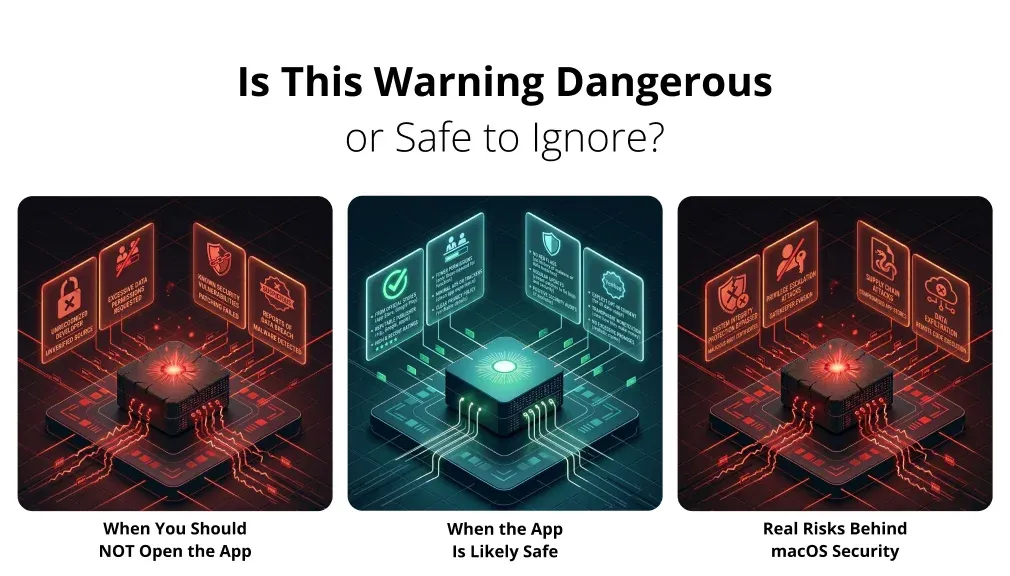
Is This Warning Dangerous or Safe to Ignore?
This is the question everyone asks, and the honest answer is: it depends entirely on the context. The warning itself is not a verdict. It is a flag. Whether you should proceed comes down to where the app came from, who made it, and how you ended up with it.
When the App Is Likely Safe
If you downloaded the app directly from the developer’s official website, the warning is usually just a side effect of Apple’s strict verification process rather than a sign of anything dangerous. This is especially common with open-source tools, creative software, utility apps, and developer tools that are popular and widely used but have not gone through Apple’s notarization process.
Apps like older versions of VLC, some command-line tools packaged as Mac apps, or niche productivity software from indie developers often trigger this warning. If the developer is well-known, the app has thousands of reviews elsewhere, and you got it straight from the source, the risk is low.
When You Should NOT Open the App
If you received the app through an email attachment, a sketchy link, a torrent, or from someone you do not know personally, stop right there. This warning combined with an unknown source is a serious red flag. Even if the file looks harmless, you have no way of knowing what is actually inside it.
Also be careful if the app is a cracked version of paid software. Cracked apps are almost always modified, and modified code means the signature is broken. Beyond the legal issue, cracked software is one of the most common delivery methods for malware on macOS. The fact that macOS cannot verify it is not a coincidence.
Finally, if you did not intentionally download this app and are not sure where it came from, do not open it. Delete it and move on.
Real Risks Behind Ignoring macOS Security Warnings
macOS security warnings exist for a reason. Malware on Mac is real and growing. Infostealers that harvest passwords and browser cookies, adware that hijacks your traffic, ransomware that encrypts your files, spyware that monitors your activity. All of these have been distributed through exactly this kind of unverified app.
Bypassing Gatekeeper on a legitimately dangerous app can give malware immediate access to your system. Depending on the permissions the app requests, that can mean access to your files, your camera, your microphone, your keychain. It can also mean access to your network traffic, which is why running a reliable VPN like AstrillVPN adds a meaningful layer of protection even after the fact by encrypting what leaves your device.
The warning is not there to annoy you. It is there because someone at some point decided that a little friction was worth it to prevent a lot of damage.
Quick Fix: How to Open Apps Apple Cannot Check for Malicious Software
If you have decided the app is safe and you want to open it anyway, macOS gives you a few ways to do that. The right method depends on your macOS version and how much you want to adjust your security settings.
Method 1: Open the App via System Settings (Recommended)
This is the cleanest approach and the one Apple actually built into the system for exactly this situation. Here is how it works.
Try to open the app as you normally would. macOS will block it and show you the warning. Then open System Settings (or System Preferences on older macOS versions) and go to Privacy and Security. Scroll down and you will see a message near the bottom saying that the app was blocked. There will be an “Open Anyway” button right there. Click it. macOS will ask you to confirm once more, and then the app will launch.
After you do this once, macOS remembers your choice and will not block that specific app again. You do not need to change any global settings.
Method 2: Right-Click and Open
This is the old favorite and still works on most macOS versions. Instead of double-clicking the app, right-click it (or Control-click if you do not have a right mouse button) and select Open from the menu that appears. macOS will show the warning again, but this time it will also include an Open button that lets you proceed. Click it and you are done.
This trick works because right-clicking tells macOS that a human is making a deliberate, informed choice rather than just accidentally running something. It bypasses the automatic block while still logging that you acknowledged the risk.
Method 3: Allow Apps from Identified Developers Temporarily
This setting lives in System Settings under Privacy and Security, specifically under the “Allow apps downloaded from” section. By default it is set to App Store and identified developers. If it was changed to App Store only at some point, you can switch it back to include identified developers.
This does not disable all security checks. It just widens the net slightly to include developers who have a valid Apple certificate, even if they did not go through full notarization. It is a reasonable middle ground for most users who regularly work with third-party software.
Advanced Fixes for “Can’t Be Opened Because Apple Cannot Check It for Malicious Software”
If the standard methods are not doing the job, or you are dealing with a more stubborn case, here are some deeper options. These are more powerful, so use them thoughtfully.
Remove Quarantine Attribute via Terminal
When you download a file from the internet, macOS automatically adds a quarantine flag to it. This is what triggers the Gatekeeper check. You can remove that flag manually using Terminal.
Open Terminal and type the following command, replacing the path with the actual location of your app:
xattr -d com.apple.quarantine /Applications/YourApp.app
Hit Enter. If the command runs without error, the quarantine flag has been removed. Try opening the app again and it should launch normally. This is a targeted fix that only affects that specific app, not your overall security settings.
Disable Gatekeeper Temporarily (Advanced Users Only)
This option turns off Gatekeeper entirely, which means macOS will stop checking any app you try to open. This is a last resort and should only be done if you have a very specific reason, know exactly what you are doing, and plan to re-enable Gatekeeper immediately afterward.
The Terminal command to disable Gatekeeper is:
sudo spctl –master-disable
To re-enable it after you are done:
sudo spctl –master-enable
Do not leave Gatekeeper disabled. It is one of macOS’s most important defenses against malware, and running without it long-term significantly increases your risk.
Reinstall the App from a Trusted Source
Sometimes the simplest fix is the right one. Delete the app completely and download a fresh copy directly from the developer’s official site. If the original download got corrupted, was downloaded from a mirror site, or came through a file-sharing service, the signature may be broken or missing entirely. A clean download from the source often resolves the issue without any Terminal tricks.
While you are at it, verify the download link. Go to the developer’s homepage directly rather than clicking a link from a third-party article or forum. This also reduces the risk of landing on a lookalike site that serves modified or infected versions.
Update macOS to Fix Verification Issues
Older versions of macOS sometimes have bugs or compatibility issues with the notarization system. If you are running a significantly outdated version, some apps that are properly signed and notarized may still fail verification. Updating macOS resolves these edge cases and also patches any other security vulnerabilities that might be lurking in the background.
Go to System Settings, then General, then Software Update. If an update is available, install it. This is good advice regardless of the malware warning situation.
Why macOS Blocks Apps It Cannot Verify
Apple’s approach to app security has evolved a lot over the years, and the system behind this warning is more layered than most people realize. To understand why macOS behaves the way it does, it helps to know what is actually happening under the hood.
What Is Apple Gatekeeper?
Gatekeeper is macOS’s app screening system. It has been part of macOS since Mountain Lion, and its job is to check every app before it runs for the first time. It verifies that the app has a valid developer certificate, checks whether it has been notarized by Apple, and cross-references it against a list of known malicious software.
If any of those checks fail, Gatekeeper blocks the launch and shows you the warning. It is a preemptive system, meaning it stops potential threats before they can execute, rather than waiting for damage to occur and then trying to clean it up.
What Is App Notarization?
Notarization is a process where the developer submits their app to Apple before release. Apple’s automated system scans the app for malware, checks its code signature, and if everything looks clean, attaches a notarization ticket to the app. When you try to open it, macOS checks for that ticket.
This process became required for all Mac software distributed outside the App Store starting with macOS Catalina. Apps that skipped notarization, or were built before the requirement existed, will not have the ticket. Gatekeeper treats their absence as a reason to pause.
Difference Between Signed vs Unsigned Apps
A signed app has a digital certificate attached to it that proves it came from a registered developer and has not been tampered with since it was signed. The certificate ties the app to a specific Apple Developer ID. If the certificate is valid and the app’s code has not changed, the signature checks out.
An unsigned app has no such certificate. There is no way for macOS to verify who built it or whether anyone has modified it. This does not automatically mean it is dangerous, but it does mean you are working entirely on trust. Open-source tools, hobby projects, and very old software often fall into this category.
How to Check If an App Is Safe Before Opening It
Before you click Open Anyway on anything, it is worth doing a quick sanity check. A few minutes of research can save you a lot of headaches. Here is how to approach it.
Verify the Developer
Search for the developer’s name and website. Are they a real company or individual with a visible online presence? Do they have a GitHub page, a support forum, documentation? A developer with a public track record is far less likely to be distributing malware than someone with no web presence at all. Also check if the website you downloaded from matches what you find in search results. Typosquatting and fake developer sites are real tactics used to distribute malicious software.
Scan the App for Malware
Before opening the app, you can scan the file itself. VirusTotal is a free online tool where you can upload an app or a disk image and have it scanned by dozens of antivirus engines simultaneously. If the file comes back clean across multiple engines, that is a strong indicator it is not malware. One or two flags on obscure engines can sometimes be false positives, but widespread detection is a serious warning sign.
Check Online Reviews and Community Feedback
Search for the app name alongside terms like “safe,” “malware,” or “review.” Reddit communities like r/MacApps or r/mac are full of real users sharing their experiences. Developer forums, Hacker News threads, and niche community sites often have discussions about whether a specific app is trustworthy. If other people have been using it for years without issues, that is meaningful context.
Use Virus Scanners for macOS
Having a dedicated security tool installed on your Mac is not overkill. Malwarebytes for Mac has a solid free version that scans for known threats and adware. CleanMyMac X has a built-in malware scanner. Even Apple’s own XProtect runs in the background, though it is not user-facing. Running a full scan before and after installing any unfamiliar software is a reasonable habit.
Common Scenarios Where This Error Appears
This error does not discriminate. It shows up in plenty of completely normal situations that have nothing to do with actual malware. Here are the most common ones.
Downloading Apps from the Internet
This is by far the most common trigger. Any app downloaded outside the Mac App Store gets a quarantine flag. The first time you open it, Gatekeeper runs its checks. If the app is signed and notarized, it passes silently. If it is not, you get the warning. This is standard operating procedure for millions of Mac users who regularly use third-party software.
Installing Older macOS Software
Legacy apps built before Apple’s notarization requirements were introduced will never have a notarization ticket, no matter how reputable they are. If you are using an older version of a graphics editor, a niche utility, or a discontinued tool, expect this warning. The app may be perfectly fine but it predates the system that would certify it.
Using Cracked or Modified Apps
This is where the warning shifts from being a procedural inconvenience to a genuine red flag. Cracked software has been modified to bypass license protection. That modification breaks the code signature. So macOS cannot verify it, not because Apple is being overly cautious, but because the app has literally been altered by a third party whose intentions you cannot verify.
People who distribute cracked apps often bundle additional software with them. That additional software is frequently malware. This is not a hypothetical risk. It is a documented, well-studied distribution method. Avoid cracked apps entirely, not just for legal reasons, but because the security risk is real and significant.
Enterprise or Internal Apps
Companies sometimes build internal tools for their employees that are not distributed through the App Store and may not go through Apple’s notarization process. These apps will trigger the warning on any Mac that tries to run them. IT departments typically handle this through Mobile Device Management (MDM) systems that can configure exceptions, but individual employees sometimes encounter the warning when setting up a new machine or reinstalling software manually.
How to Prevent This Error in the Future
You cannot always avoid this warning, but you can reduce how often it shows up and make sure the apps that do trigger it are ones you actually trust.
Download Apps Only from Trusted Sources
Make the developer’s official website your default for any app that is not available in the App Store. Avoid download aggregator sites, freeware portals, and mirror sites. These third-party sources sometimes repackage legitimate apps with additional bundled software or, in worse cases, replace them with modified versions. Going straight to the source eliminates that risk.
Keep macOS Updated
Apple regularly updates Gatekeeper’s malware definitions and the underlying security architecture. Staying current means you have the latest protections. It also means fewer false positive warnings caused by compatibility issues between older macOS versions and newer apps.
Avoid Modified or Pirated Software
Already mentioned above, but worth repeating plainly: do not use cracked software. The convenience is not worth the risk. Most paid apps have free tiers, trial versions, or affordable alternatives that do not require compromising your security. For professional software specifically, the cost of a breach or a compromised machine almost always outweighs the cost of a legitimate license.
Adjust Security Settings Properly
If you regularly work with apps outside the App Store, make sure your Gatekeeper settings reflect that. Allow apps from identified developers (not just the App Store), but do not disable Gatekeeper entirely. This gives you flexibility without removing the safety net completely. Review your Privacy and Security settings periodically to make sure nothing has been changed without your knowledge.
macOS Cannot Verify App vs Malware Detected: What’s the Difference?
These two warnings look similar at a glance but mean very different things, and confusing them is a mistake worth avoiding.
“macOS cannot verify that this app is free from malware” is a verification failure. Apple is saying it could not complete the check, not that the check came back positive for threats. The app may be totally clean. It just did not go through the process that would confirm that.
A malware detected warning, on the other hand, means something was actually found. macOS’s XProtect engine flagged the file against its database of known threats. This is a much more serious situation. In this case, you should not open the app under any circumstances. Delete it immediately, run a full malware scan on your system, and consider changing any passwords you entered since the file was downloaded.
The practical difference comes down to evidence. No verification is the absence of information. Malware detected is the presence of damning information. Treat them accordingly.
One more thing worth noting: even when an app passes verification, that does not mean it is completely safe. Sophisticated malware can and does get past notarization. Apple catches and revokes these, but there can be a window. Combining macOS’s built-in protections with good habits, reputable third-party scanners, and a trustworthy VPN like AstrillVPN that encrypts your network traffic gives you layered protection rather than relying on any single system.
Security on macOS is not about being paranoid. It is about being informed. The more you understand what these warnings actually mean, the better positioned you are to make smart decisions without either ignoring real threats or blocking perfectly good software.
FAQs
Is the “cannot verify app” warning a sign of a virus?
No, this warning is not a confirmation that the app contains a virus. It simply means macOS could not verify the app through Apple’s security system. This usually happens when the app isn’t properly signed or notarized. While the app may still be safe, unverified apps carry a higher risk, so you should treat them with caution.
How does Apple verify apps for malware?
Apple verifies apps using a security system that combines Gatekeeper and app notarization. The process works like this:
The developer signs the app using an Apple-issued Developer ID, which confirms who created it.
The app is submitted to Apple for notarization, where it is scanned for known malware.
When you try to open the app, macOS uses Gatekeeper to check whether the app is properly signed and notarized.
If any of these checks fail or are missing, macOS blocks the app and shows the warning.
Is it safe to open an app that macOS cannot verify?
It can be safe, but only if you are confident about where the app came from. Apps downloaded directly from a well-known developer’s official website are often safe even if macOS cannot verify them. However, apps from unknown sources, third-party download sites, or pirated versions are much riskier. If there is any doubt about the source, it is better not to open the app.
How can I bypass the “cannot verify” warning on macOS?
You can bypass the warning by manually allowing the app to open. Here are the common methods:
Open System Settings and go to Privacy and Security.
Find the message about the blocked app and click “Open Anyway.”
Alternatively, right-click the app and choose “Open,” then confirm when prompted.
For advanced users, you can remove the quarantine flag using Terminal with the appropriate command, but this should only be done if you fully trust the app.
Should I trust apps downloaded outside the App Store?
Apps downloaded outside the App Store are not automatically unsafe, but they do require more scrutiny. Software from official developer websites is generally reliable, especially if the developer is well known. However, third-party download platforms and unofficial sources increase the risk significantly. Pirated or modified apps are especially dangerous and are a common source of malware. It is always important to verify the developer and ensure the download source is legitimate before installing anything.
Table of Contents